There are two common ways to interact with the Astute Agent user interface: shortcut menus and keyboard shortcuts.
Shortcut Menus
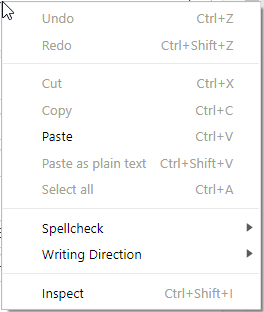
Almost anywhere in Astute Agent, you can right-click to bring up a shortcut menu. This menu provides quick access to common functions for the active window. Below is an example of a shortcut menu:
Keyboard Shortcuts
Many of the functions that require you to select a menu option or click a button can also be accomplished by using a specific key combination on your keyboard. Many users find it quicker to use these keyboard shortcuts, rather than having to take their hands off the keyboard to move the mouse. Keyboard shortcuts are referred to throughout the Help.
Note: Unless noted otherwise, the shortcuts listed are the same for Mac users.
Common Shortcuts
| Shortcut | Mac User Shortcut |
Browser | Description |
|---|---|---|---|
|
[Ctrl+Shift+Alt+F9] |
[Cmd+Ctrl+Shift+3] |
|
Copies the current window's HTML content to the clipboard. |
| [Ctrl+Shift+Alt+F10] |
|
Copies the current window's data to the clipboard. | |
| [Ctrl+Shift+Alt+F12] | [Ctrl+Shift+Alt+Fn+F12] |
|
Opens the PCAS Diagnostics Menu. This information is used by system administrators. |
| [Ctrl+Q] |
|
Displays technical information about the Window Details for troubleshooting purposes. This information is used by system administrators. | |
| [Ctrl+P] | [Cmd+P] |
|
Prints the data in the current view. |
| [Ctrl+F2]
|
Note: Not available for Mac users. |
|
Opens the Help system. Whenever possible, the Help opens to the appropriate topic for the open window. |
Case Shortcuts
| Name | Shortcut | Browser | Description |
|---|---|---|---|
| Search InfoCenter | [Ctrl+Shift+I] |
|
Opens the Search InfoCenter window. |
| Save | [Ctrl+S] |
|
Saves all of the current case data. |
| Prepare Letter | [Ctrl+Shift+P] |
|
When in the Case Letter section, this prepares the current letter and allows you to edit it. |
| Add Items |
[Ctrl+I]
Note: Not available for Mac users. |
|
Opens the Add Items menu. Then, press the underlined letter key to add the element to the case. |
| Search Category Code | [Ctrl+M] |
|
Allows you to search for the category code of a field. The system opens the code on the Category screen. |
Drop-Down Field Shortcuts
The following keyboard shortcuts allow you to navigate in the drop-down fields throughout the system. With your cursor in the drop-down field, press the keyboard combination.
Note: These shortcuts are the same for Mac users.
| Name | Shortcut | Browser | Description |
|---|---|---|---|
| Browse | [Ctrl+B] |
|
Expands the drop-down field to display the list of available selections. |
| Go to Bottom | [Ctrl+End] |
|
Moves the cursor to the last item of the last page in the drop-down field. |
| Go to Top | [Ctrl+Home] |
|
Moves the cursor to the first item in the drop-down field. |
| Go Up a Page | [PageUp] |
|
When the drop-down field browser has a vertical scroll bar, scrolls down one page. |
| Go Down a Page | [PageDown] |
|
When the drop-down field browser has a vertical scroll bar, scrolls down a page. |
| Go Up One Item | [UpArrow] |
|
Moves the cursor to the previous item in the drop-down list. |
| Go Down One Item | [DownArrow] |
|
Moves the cursor to the next item in the drop-down list. |
| Expand Item | [RightArrow] |
|
Expands a collapsed folder or moves to the first item of the expanded folder in the drop-down field browser. |
| Collapse Item | [LeftArrow] |
|
Collapses an expanded folder or moves to the next highest folder in the drop-down field browser. |
 Related Topics
Accelerate your Agent knowledge by visiting Emplifi Learning, our online learning platform, for on-demand courses, certifications, how-to videos and even more guides!
Copyright © 2023 Emplifi Inc. All rights reserved.